
Ulaa Browser – Privacy-Focused with Multi-Mode Isolation
Browser Enthusiast
As a browser enthusiast, I love trying out different browsers. Each browser has its unique features and areas of expertise, such as privacy, security, functionality, ease of use, localization, multi-platform synchronization, and more. However, I have yet to find a "hexagonal warrior" that excels in all aspects. This is why I continue to experiment with different browsers in search of the one that suits me best.
I plan to write a series of blog posts about my experiences with different browsers, covering their basic functions and features. This category will be called "Browser Enthusiast," aiming to help readers quickly understand the differences between various browsers.
Ulaa Browser
Official Introduction
Ulaa Browser is a privacy-focused browser launched by Zoho in May 2023. It is based on the Chromium engine and supports Windows, macOS, Linux, iOS, and Android. I only recently discovered it while tinkering with Zoho Mail. Since it has been on the market for less than two years, it remains relatively niche. Ulaa Browser appears to be closed-source, as I have not found any information indicating otherwise.
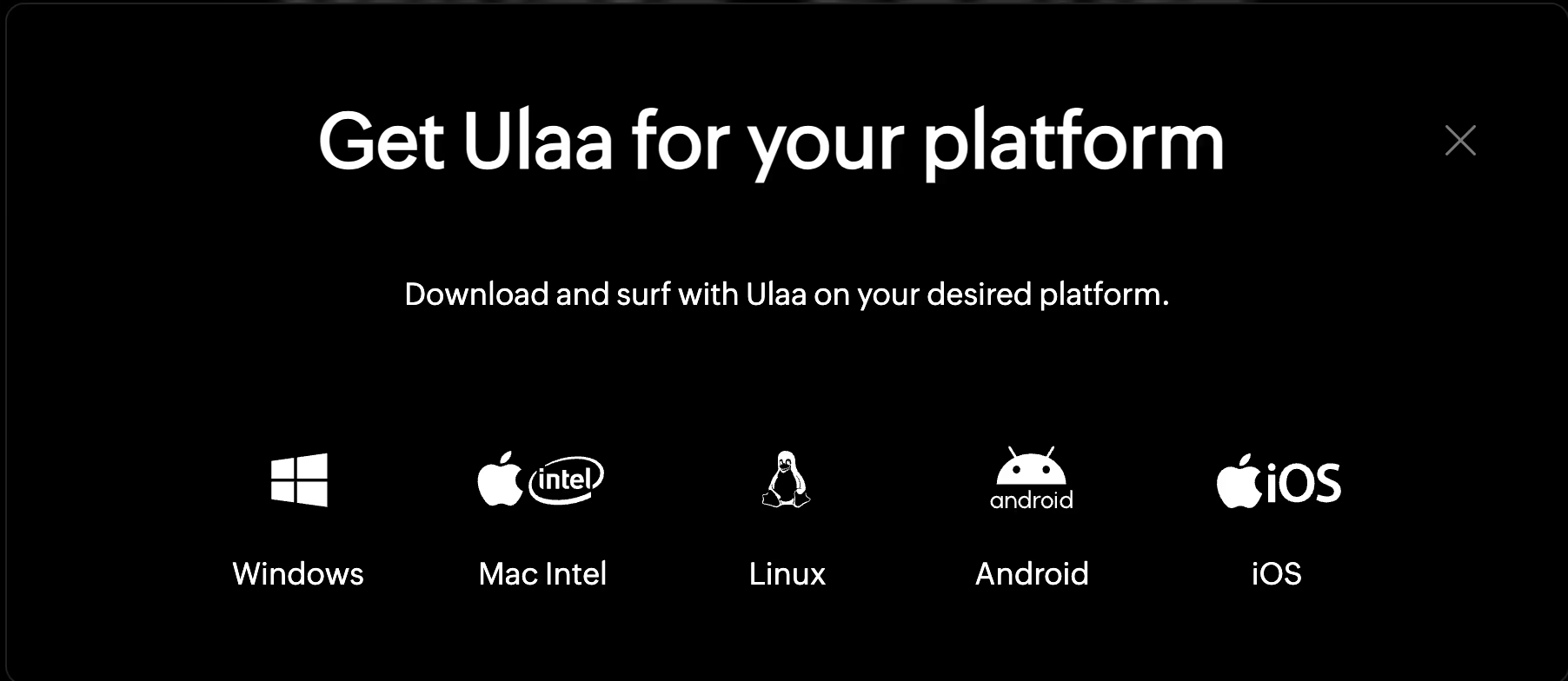
According to the official description, it is designed for efficiency, helping users maximize productivity and complete more tasks in less time. Ulaa Browser integrates with Zoho's SSO authentication system, allowing seamless and secure logins to Zoho applications without repeated manual authentication. Indeed, logging into Zoho Mail was hassle-free. The browser also features a mode-switching function, enabling quick transitions between work and personal modes, as well as developer and child modes.
Regarding privacy protection, Ulaa Browser claims it does not send any user data to third parties and does not require third-party account integration. It has no built-in trackers or analytics, no motion sensors, and even lacks a similar URL suggestion feature to enhance privacy. It also disables DNS prefetching.
My Experience
Appearance
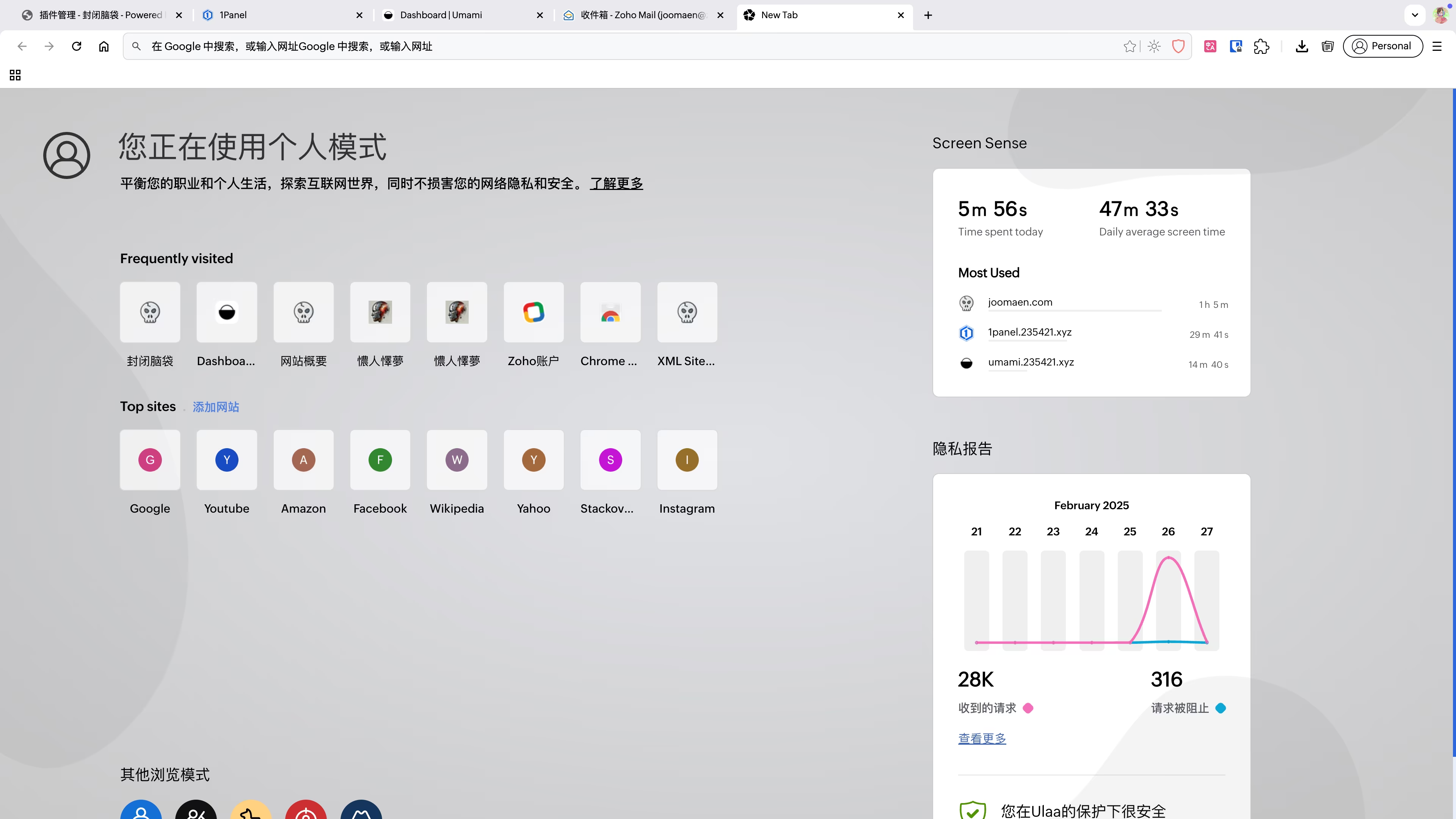
When launching the desktop browser (I tested the macOS version), the home page resembles Chrome. However, the top right corner includes a built-in ad blocker, a Ulaa Notes button, and a capsule-shaped mode-switching button. The new tab page displays favorite and recently visited sites as shortcut icons, along with two side panels showing usage time and a privacy report.
Ad Blocker
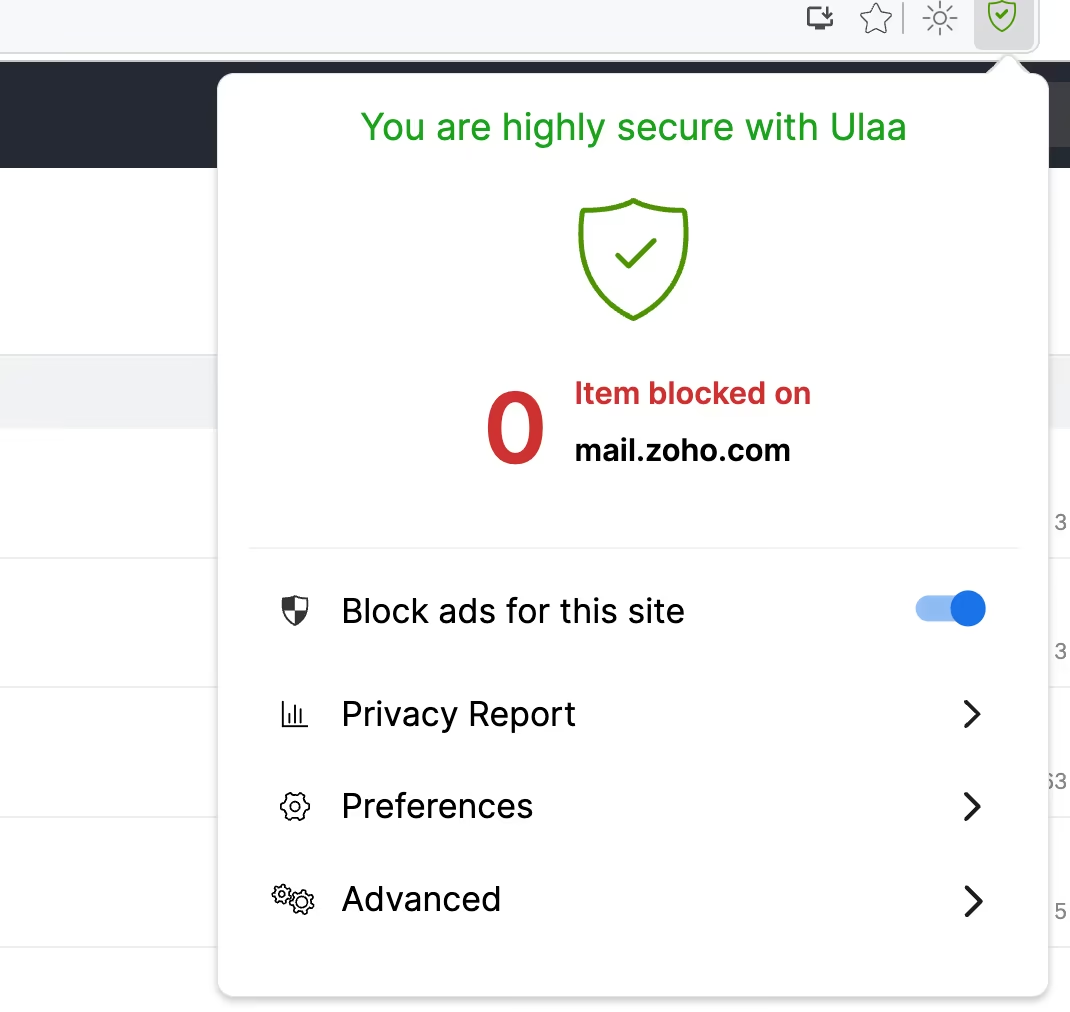
A built-in ad blocker is enabled by default in the menu bar. Clicking its icon allows quick toggling of ad blocking for specific websites. There are three options below:
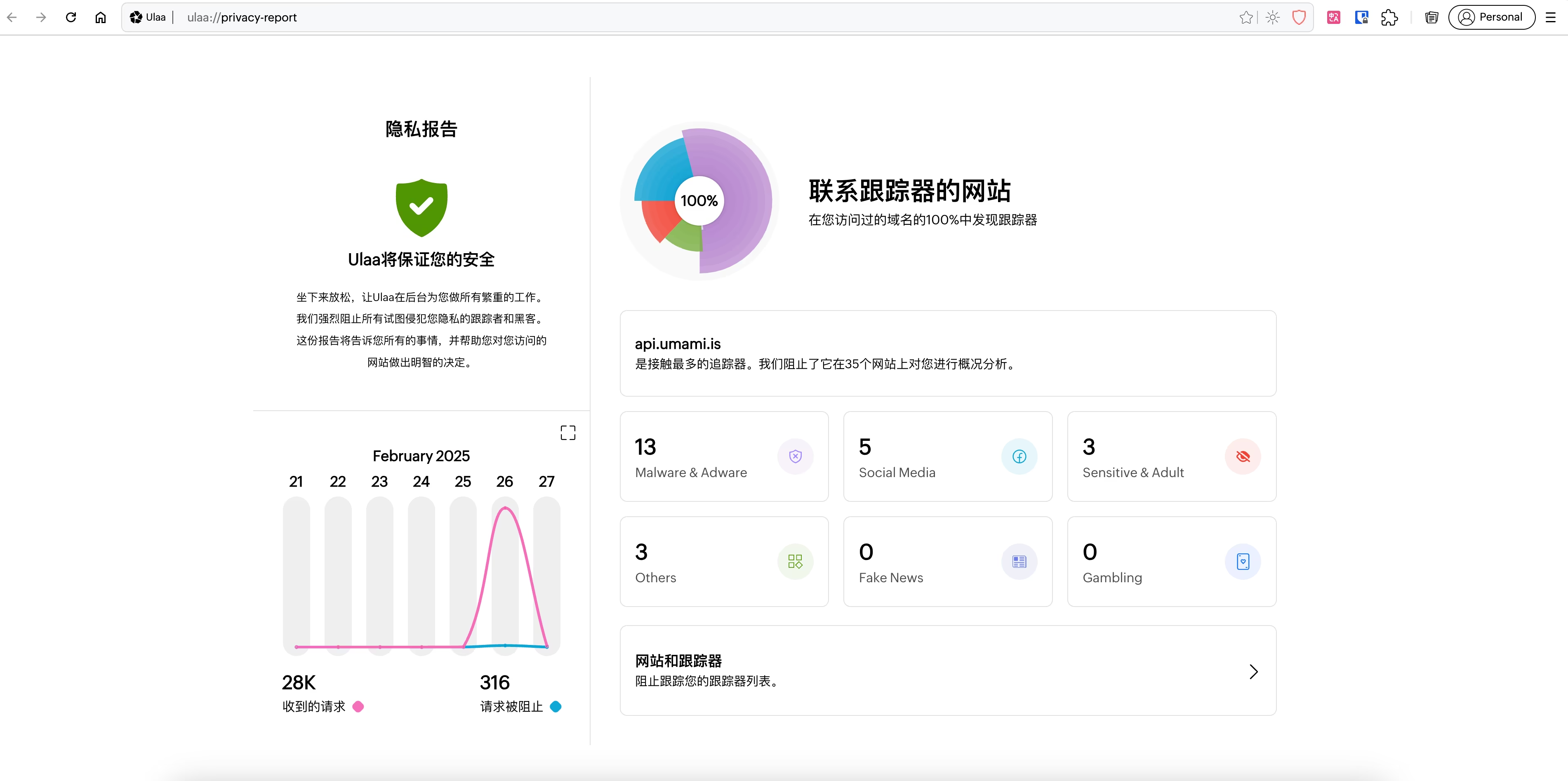
- Privacy Report: Redirects to a page displaying detailed tracker-blocking data.
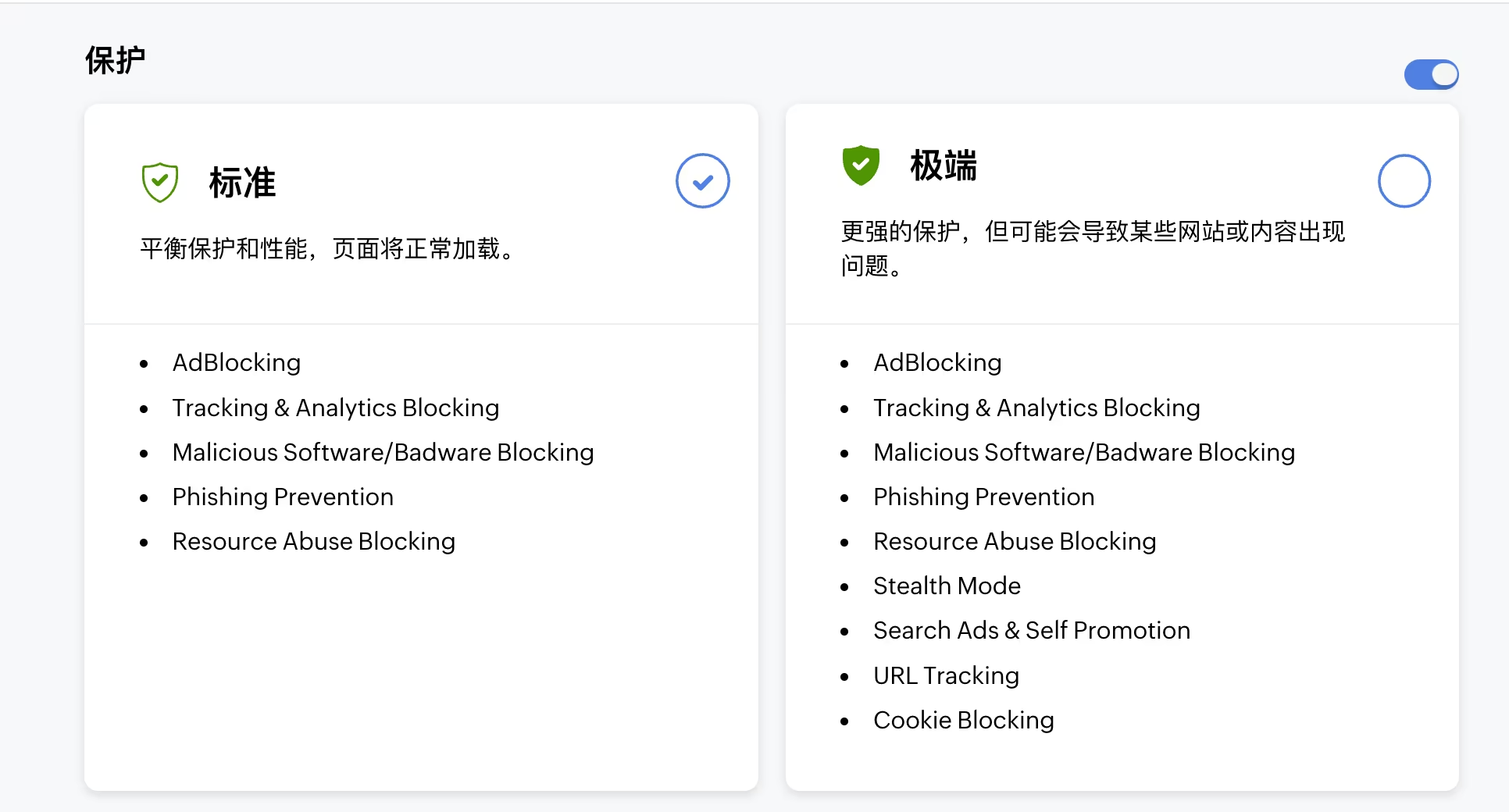
- Preferences: Leads to the privacy and security settings page, offering "Standard Protection" and "Extreme Protection" options.
- Advanced: Updates the blocking list, though I couldn't find an option to customize rules, suggesting it only supports built-in lists.
Mode Switching
Clicking the capsule-shaped button in the top right allows quick switching between different modes, which are isolated from each other.
- Personal Mode: Designed for casual browsing, such as shopping, social media, and personal emails, while maintaining privacy and security. I use this mode most often, as it has an ad blocker enabled by default without other restrictions.
- Child Mode: Requires setting a password, which must be entered to enter and exit the mode. It automatically blocks inappropriate content and websites, and its new tab page includes educational websites and games.
- Work Mode: Appears similar to Personal Mode with no additional restrictions, meant to separate work-related and personal browsing activities.
- Open Season Mode: Completely open mode with no tracker blocking or restrictions.
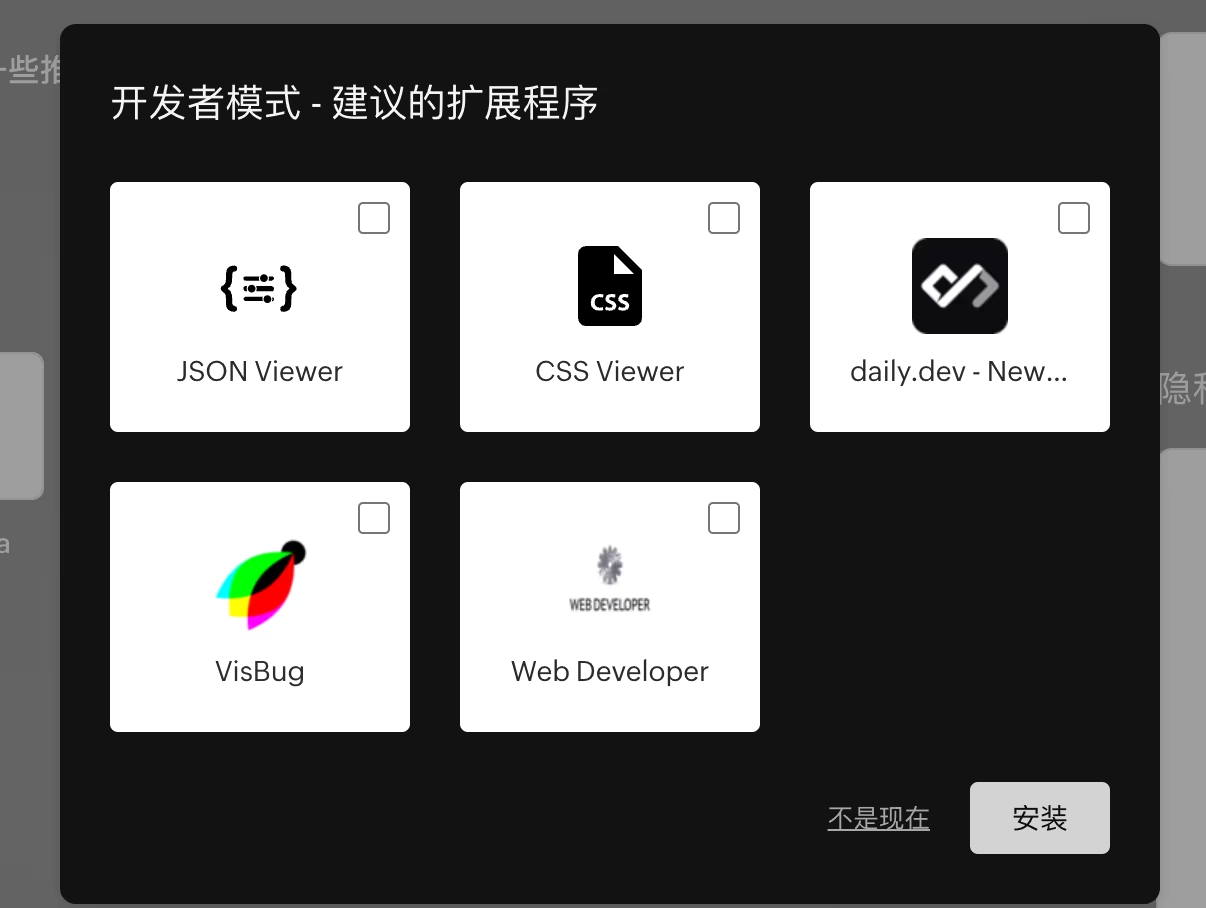
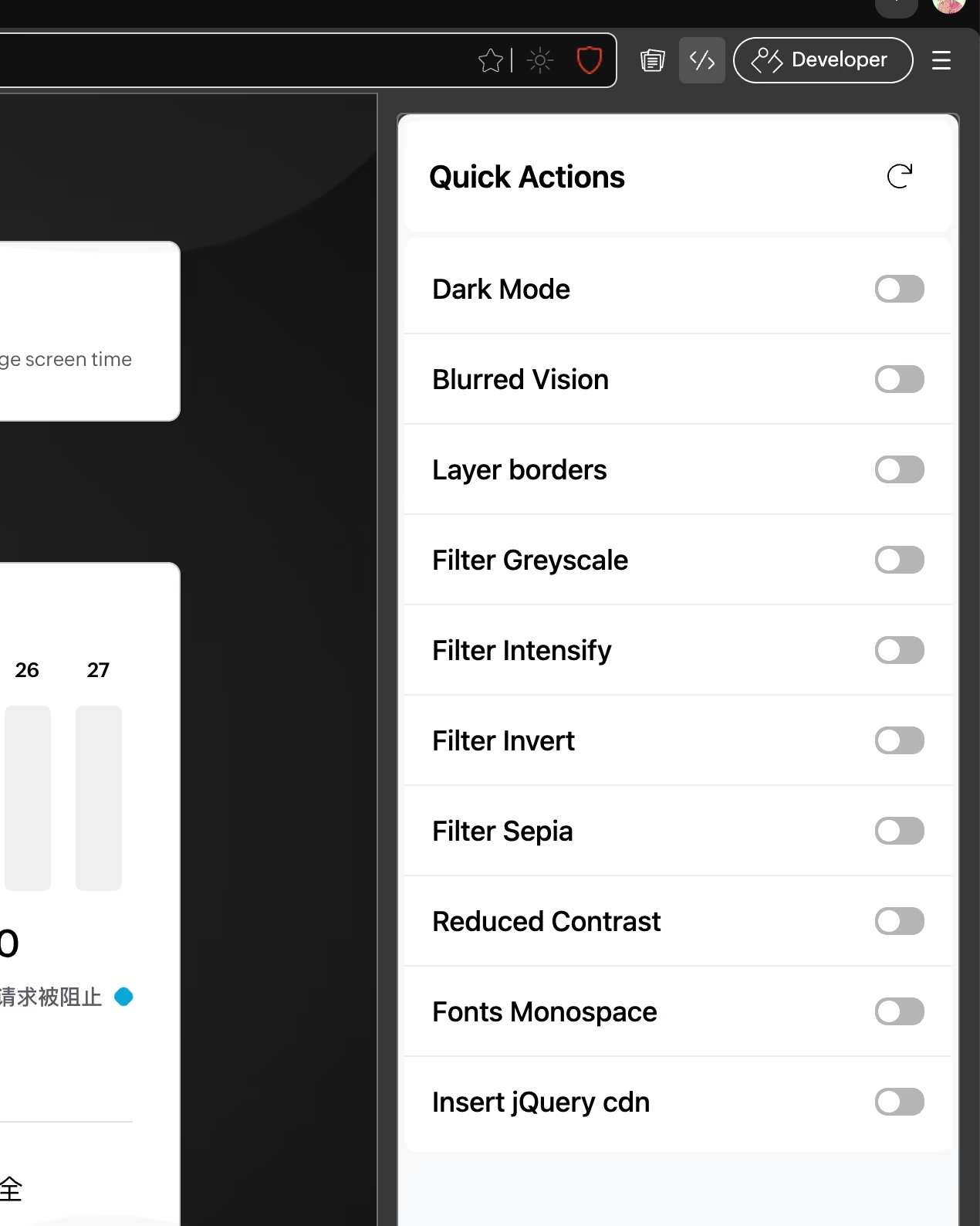
- Developer Mode: Suggests browser extensions upon entry and includes a "Quick Actions" button for debugging tasks.
Additionally, there is an Incognito Mode.
Automatic Mode Switching
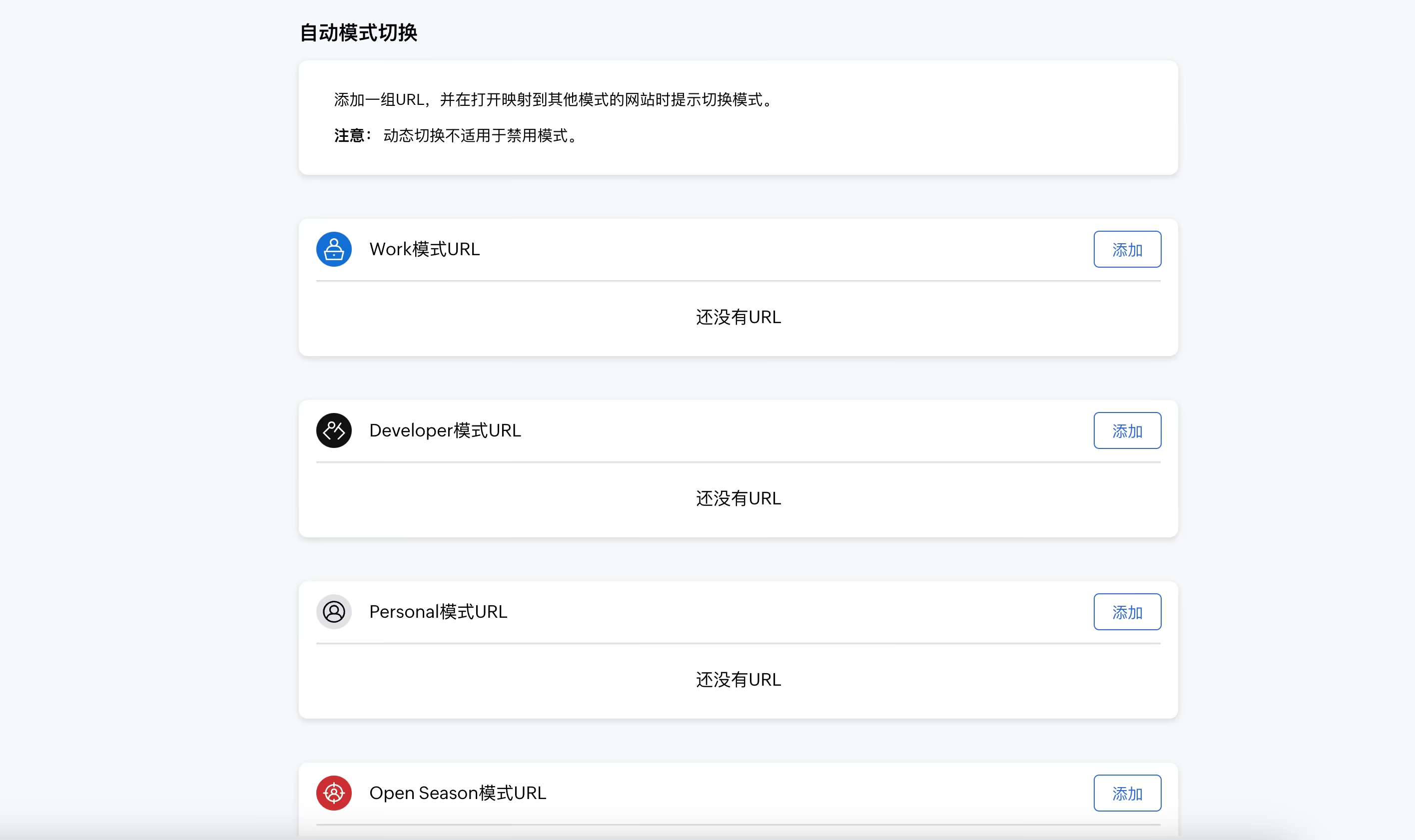
The predefined modes themselves are not particularly groundbreaking, as multiple Chrome profiles can achieve similar separation. However, Ulaa includes an automatic mode-switching feature, allowing users to assign URLs to specific modes. When visiting these websites, the browser automatically switches to the corresponding mode. I have yet to find a practical use case for this feature, and I haven't seen it in other browsers, but it's an interesting addition for those who might need it.
Multi-Platform Sync
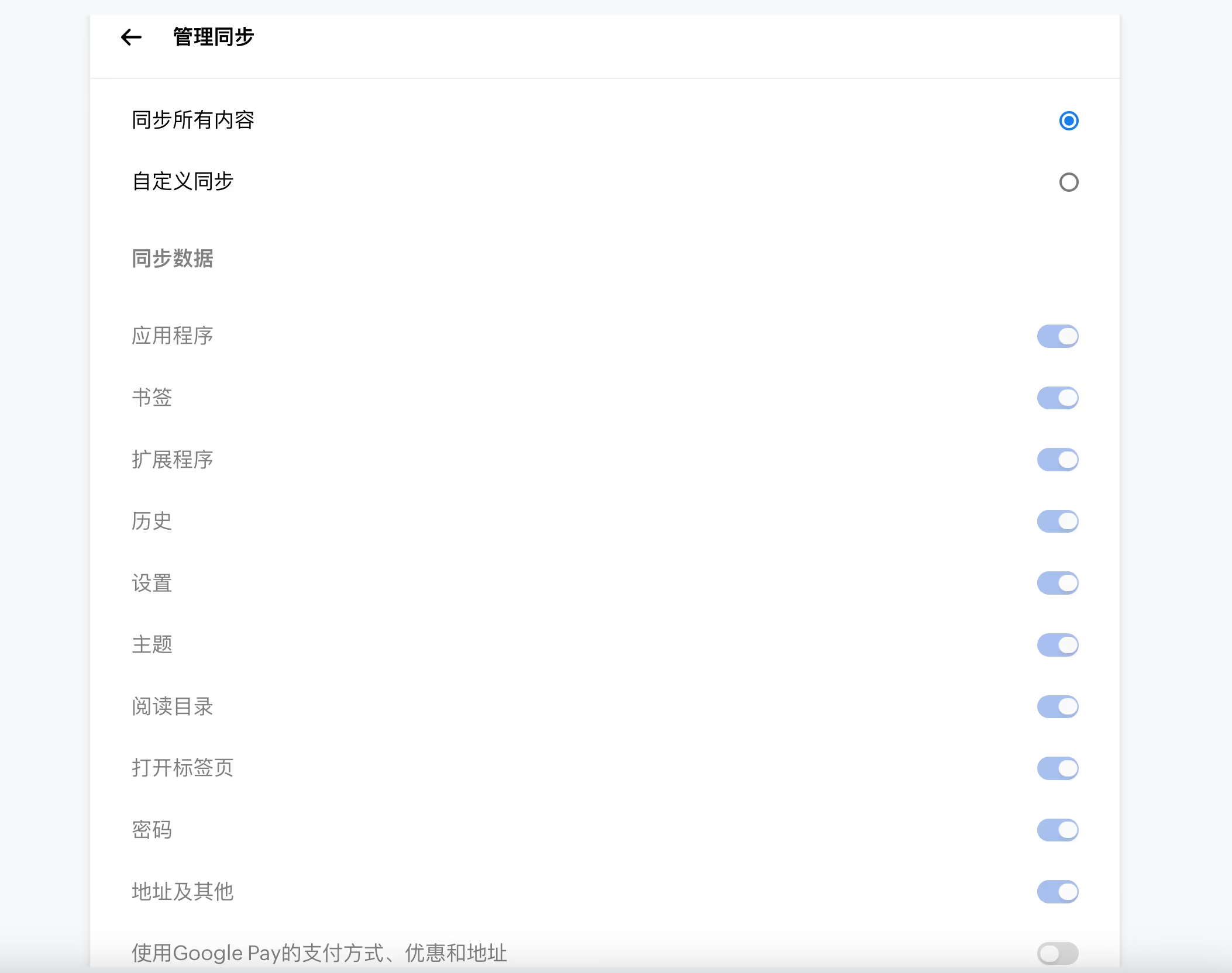
Since I use a Zoho-hosted domain email, I can log in directly and synchronize across platforms using my Zoho account. Practically everything syncs seamlessly. You can also register a Zoho account with an existing email (e.g., Outlook) for synchronization.
Extensions
Being Chromium-based, Ulaa supports all extensions from the Chrome Web Store. The current version uses the latest Chromium 133 engine. The Manifest V2 version of uBlock Origin is still available for installation from the Chrome Store, though a warning states it will soon be unsupported. I also tried manually installing it from a local file. While dragging the CRX file into the browser failed due to extraction issues, loading the unpacked extension worked, though it still displayed a deprecation warning.
Conclusion
Overall, Ulaa Browser is not particularly outstanding—it can be considered Zoho's version of Chrome. It doesn't introduce excessive or redundant features. Compared to Chrome and Edge, its privacy protection is undoubtedly superior. It offers several privacy enhancements that might not be immediately noticeable to users, with the multi-mode and dynamic switching features being its highlights. Given that it has only been around for a short time, I hope it doesn't become bloated like Edge. Keeping it simple while enhancing privacy should be enough for most users.
If you're using Chrome but aren't heavily dependent on Google services, Ulaa could be a good alternative. It may also be useful for users who need isolated browsing environments. Additionally, if you value privacy but find Firefox too complex, Ulaa might be worth trying.
References

Joomaen
"Closed Mind" is a personal blog focused on artificial intelligence, tech tinkering, and the blogger’s personal thoughts. It shares unique insights on AI development, browsers, and technical practices, making it ideal for readers interested in technology and future trends.


